Client Account Experience
This page walks through the client portal from a client account user's perspective.
Signing In
Client accounts use the same Auth0 login flow as team members. Navigate to your tenant URL and sign in with the credentials provided in your invitation email.
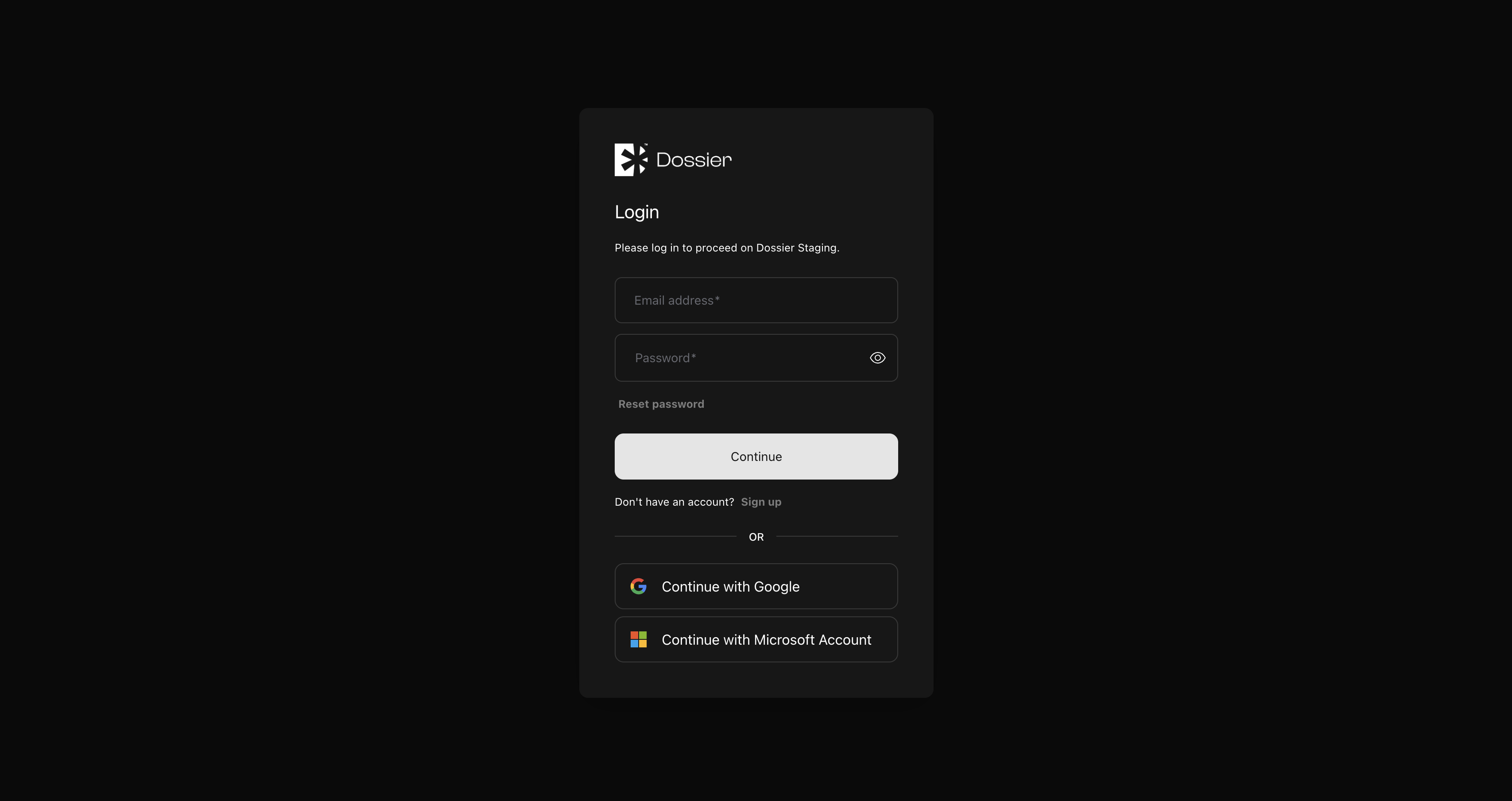
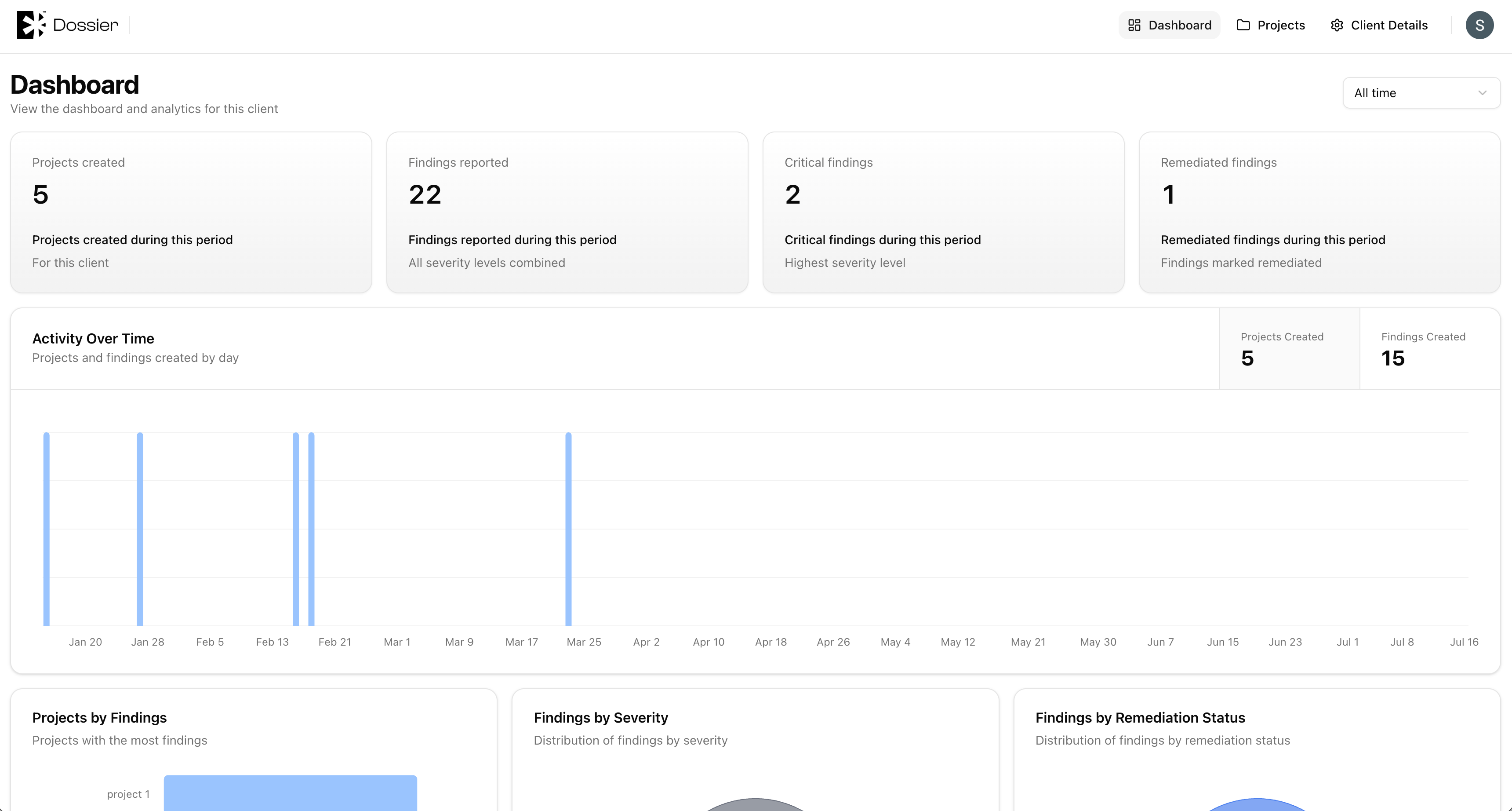
After login, you are redirected to the client portal dashboard — not the team sidebar.
Dashboard
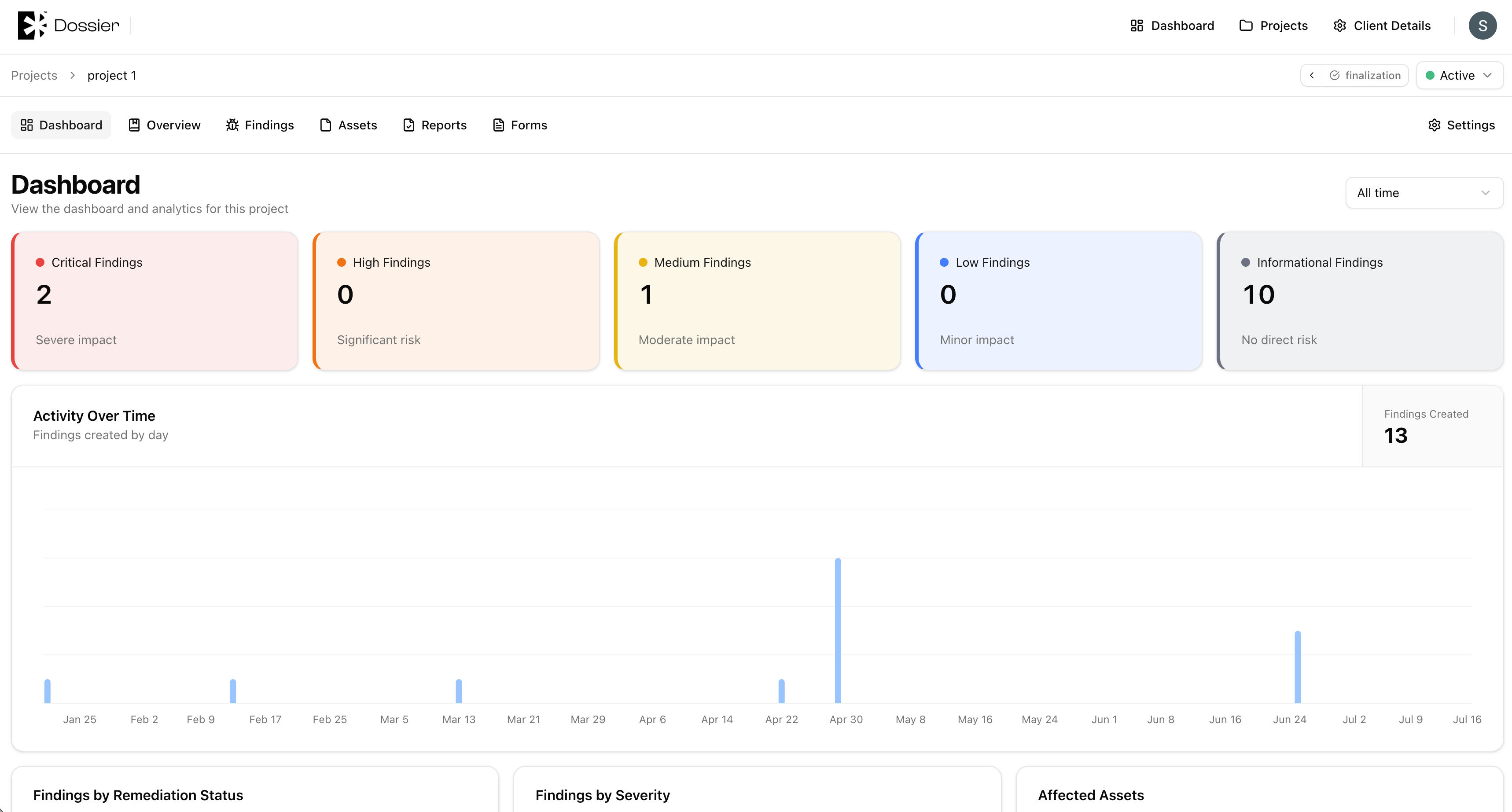
The dashboard shows an overview of your client's security posture:
- Findings by severity (Critical, High, Medium, Low, Informational)
- Remediation status breakdown
- Recent project activity
Viewing Projects
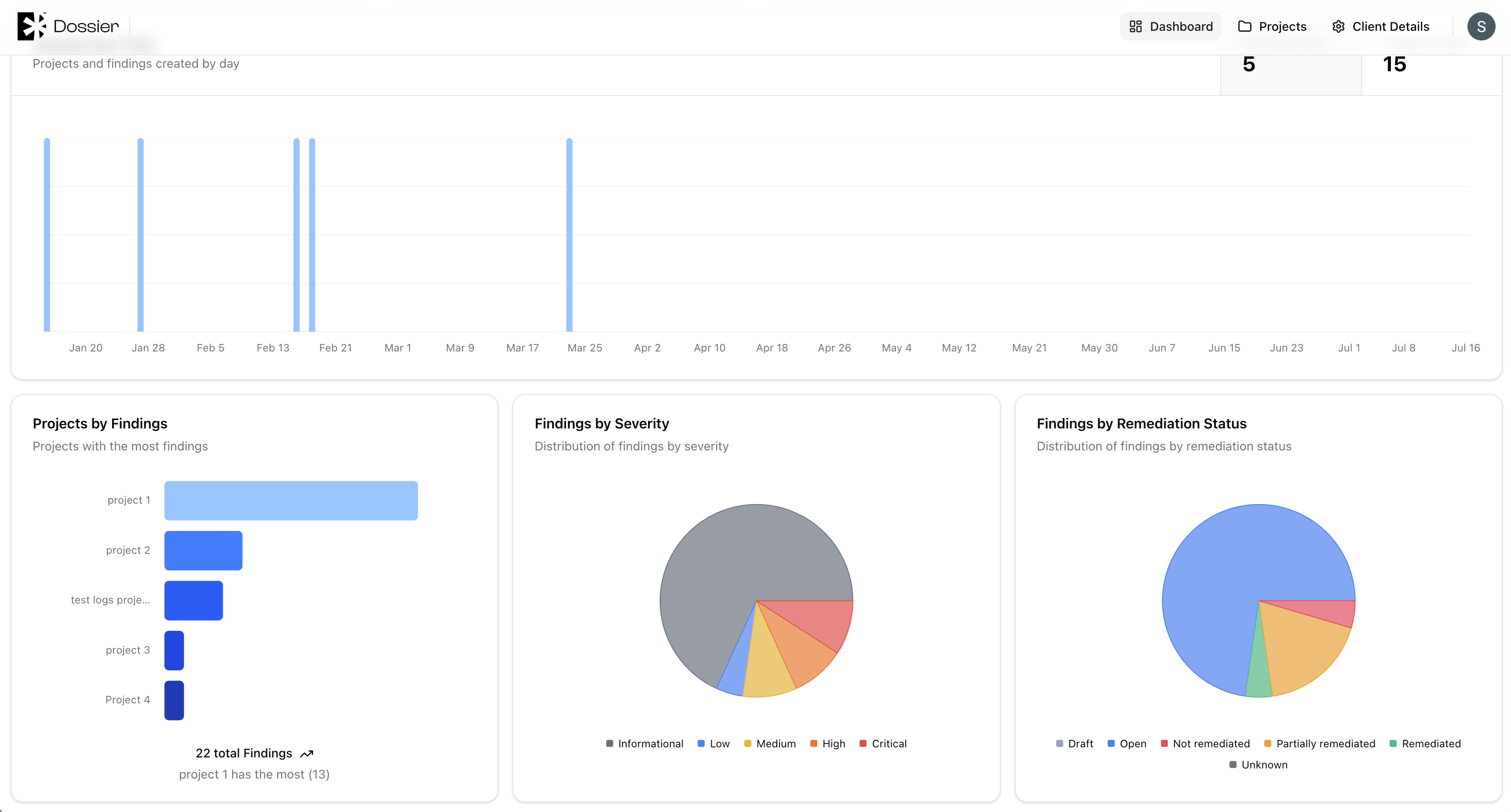
Click Projects in the top navigation to see all non-draft projects for your client.
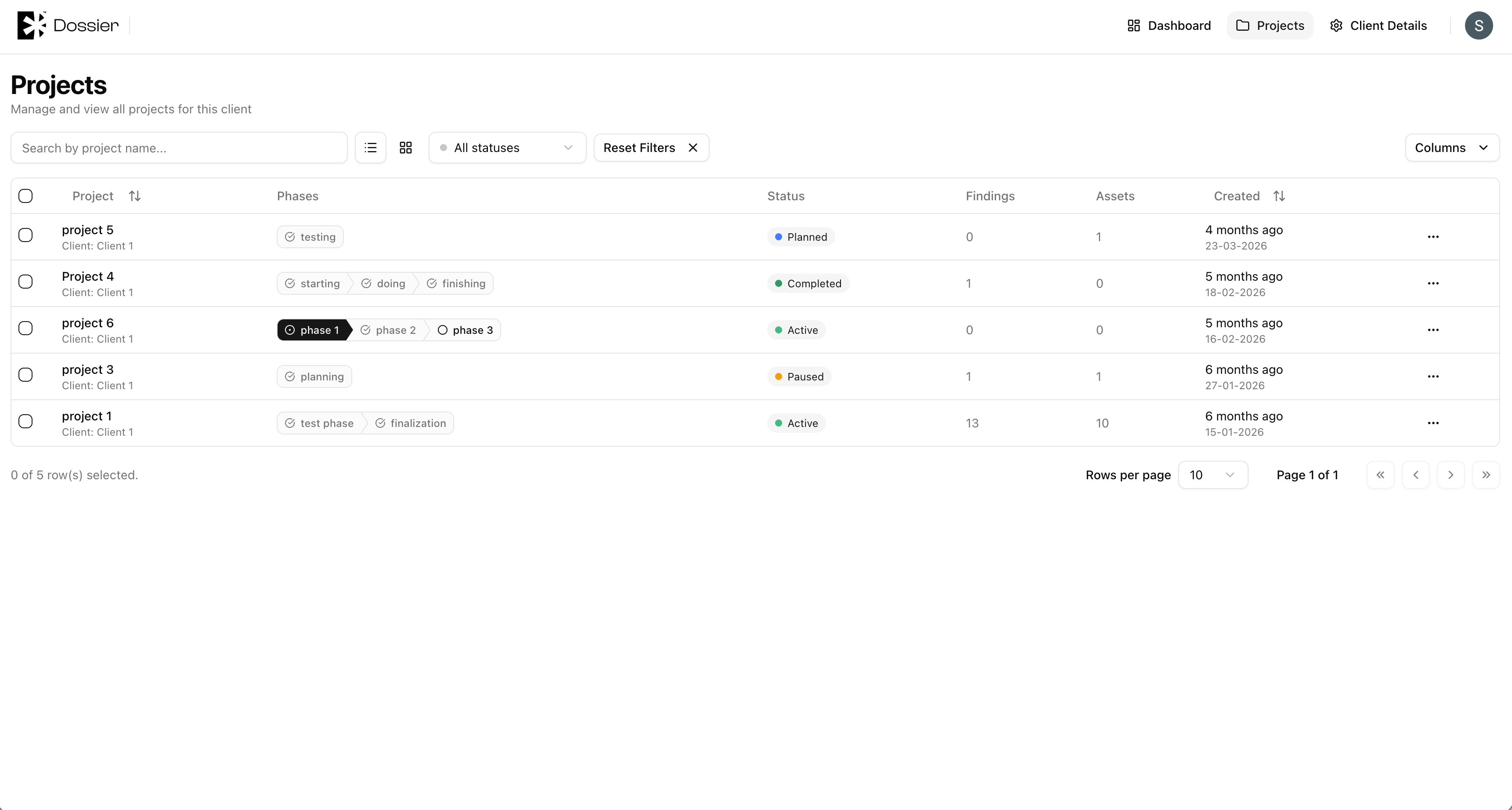
Click a project to view its tabs:
| Tab | Description |
|---|---|
| Dashboard | Project analytics |
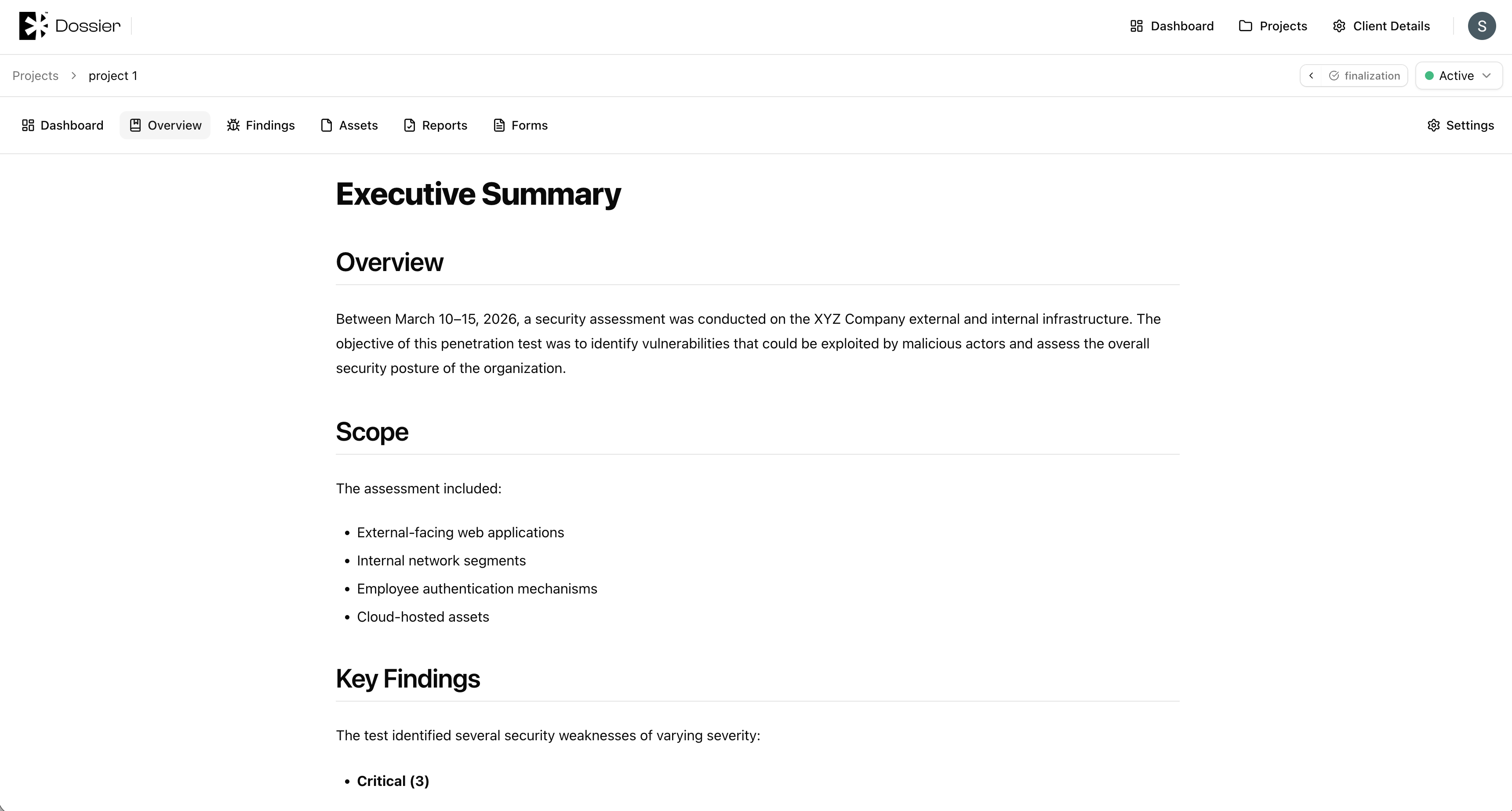
| Overview | Project overview (content appears when the team marks it ready) |
| Findings | Vulnerability findings |
| Assets | Project scope assets |
| Forms | Questionnaires to complete |
Viewing the Project Overview
Open a project's Overview tab to read the project overview. Content appears once the team has marked the overview as ready for client review.
Reviewing Findings
Open a project's Findings tab to see all non-draft findings. Click a finding to read its full content in rendered mode.
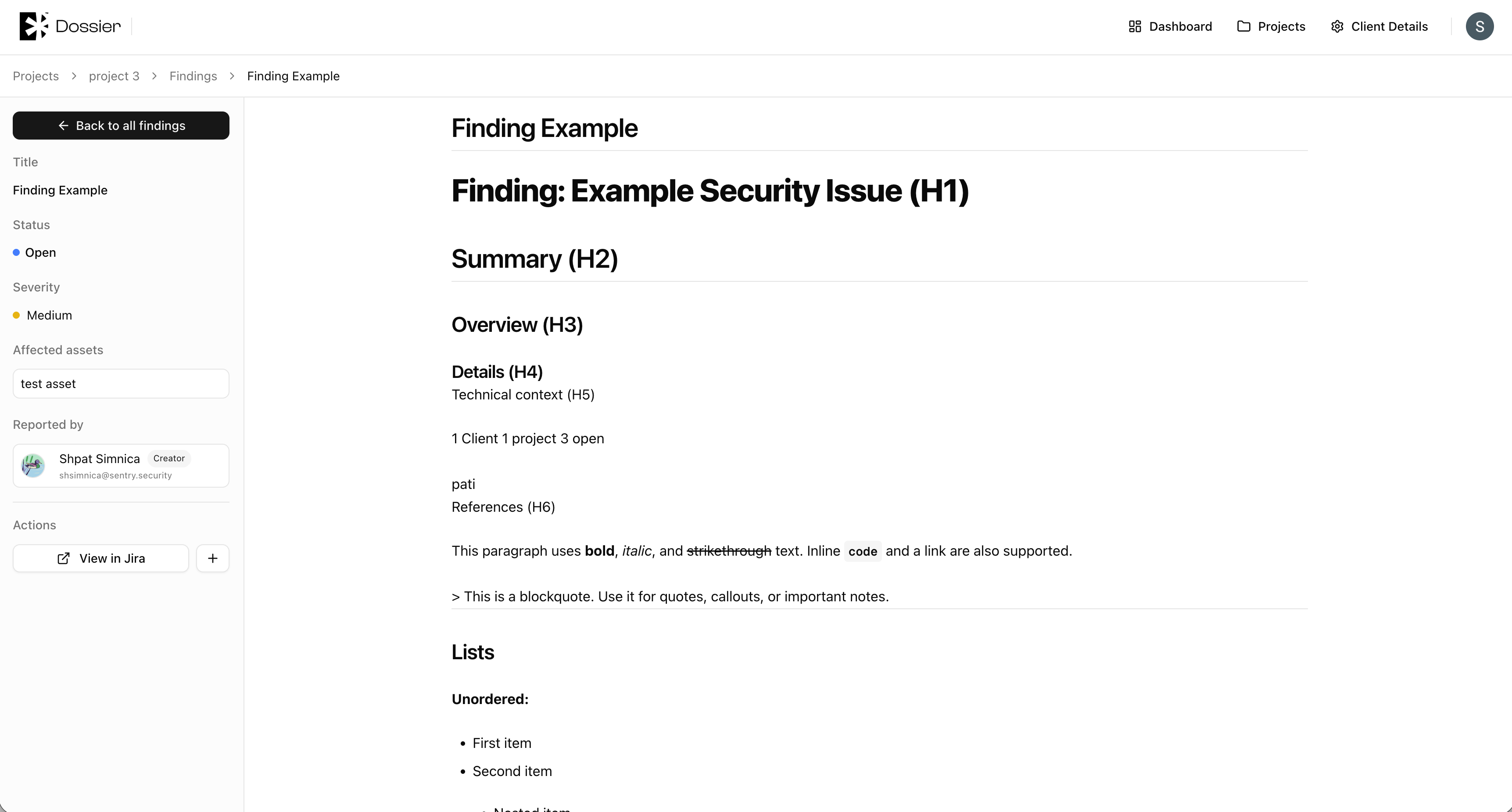
Findings are read-only for client accounts. You cannot edit finding content or change statuses.
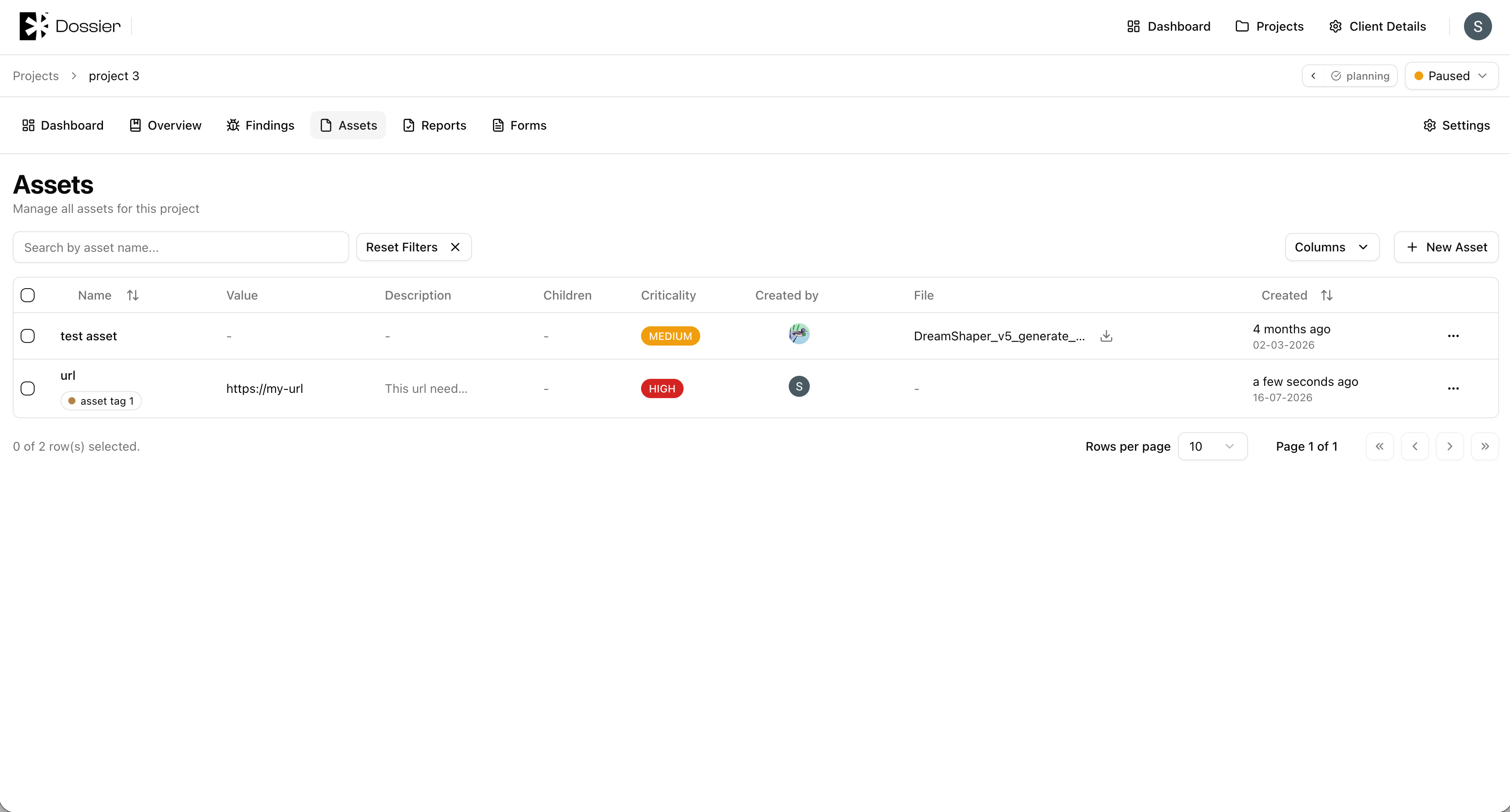
Managing Assets
From a project's Assets tab, you can:
- View all project assets
- Create new assets
- Edit and delete assets you created
You cannot modify assets created by team members.
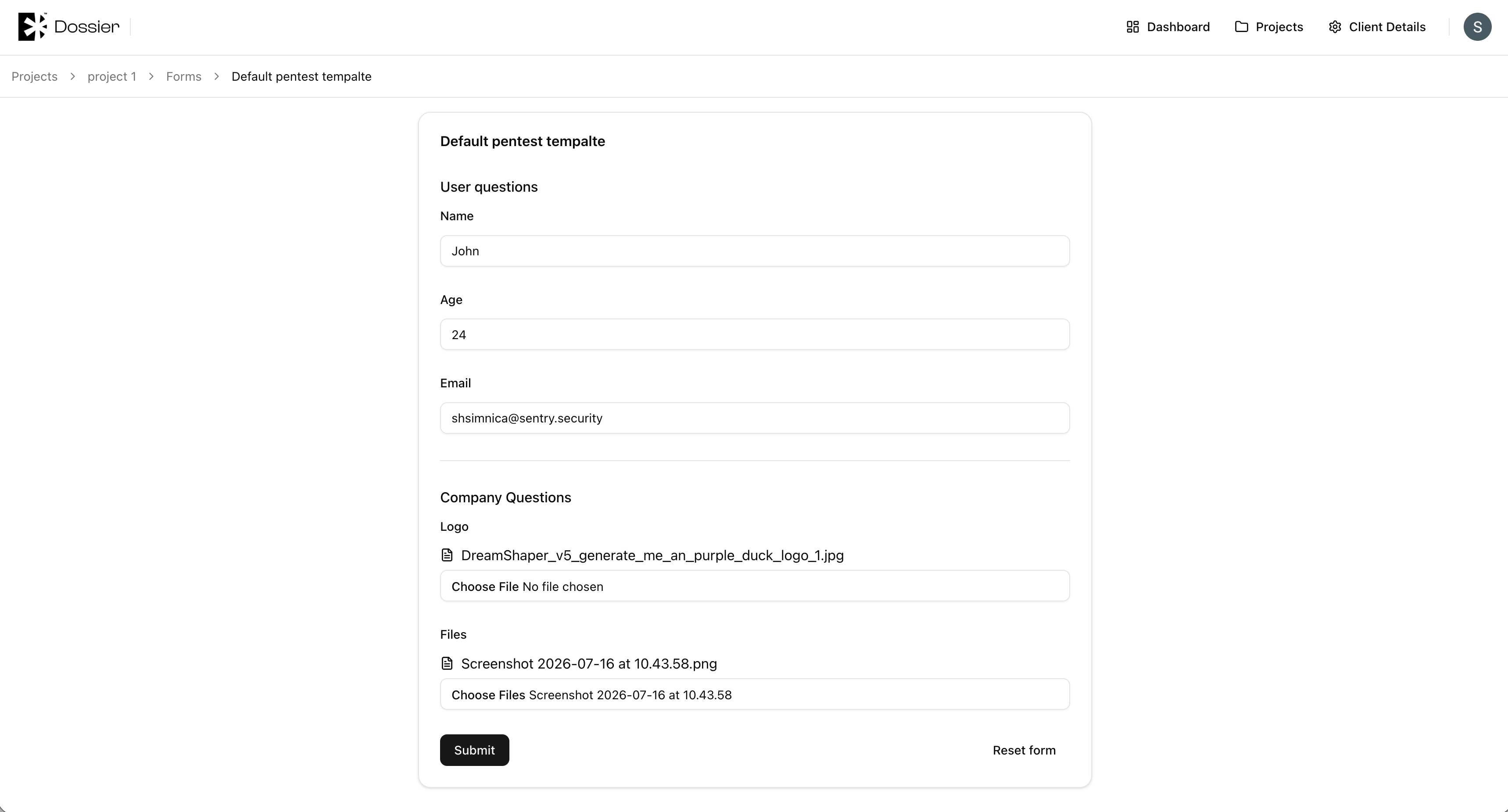
Submitting Forms
If the team has shared a form with you:
- Open the project's Forms tab.
- Click the form to open it.
- Fill in the fields and click Submit.
You may also receive a public link (/forms/:token) that lets you submit without signing in.
Client Details
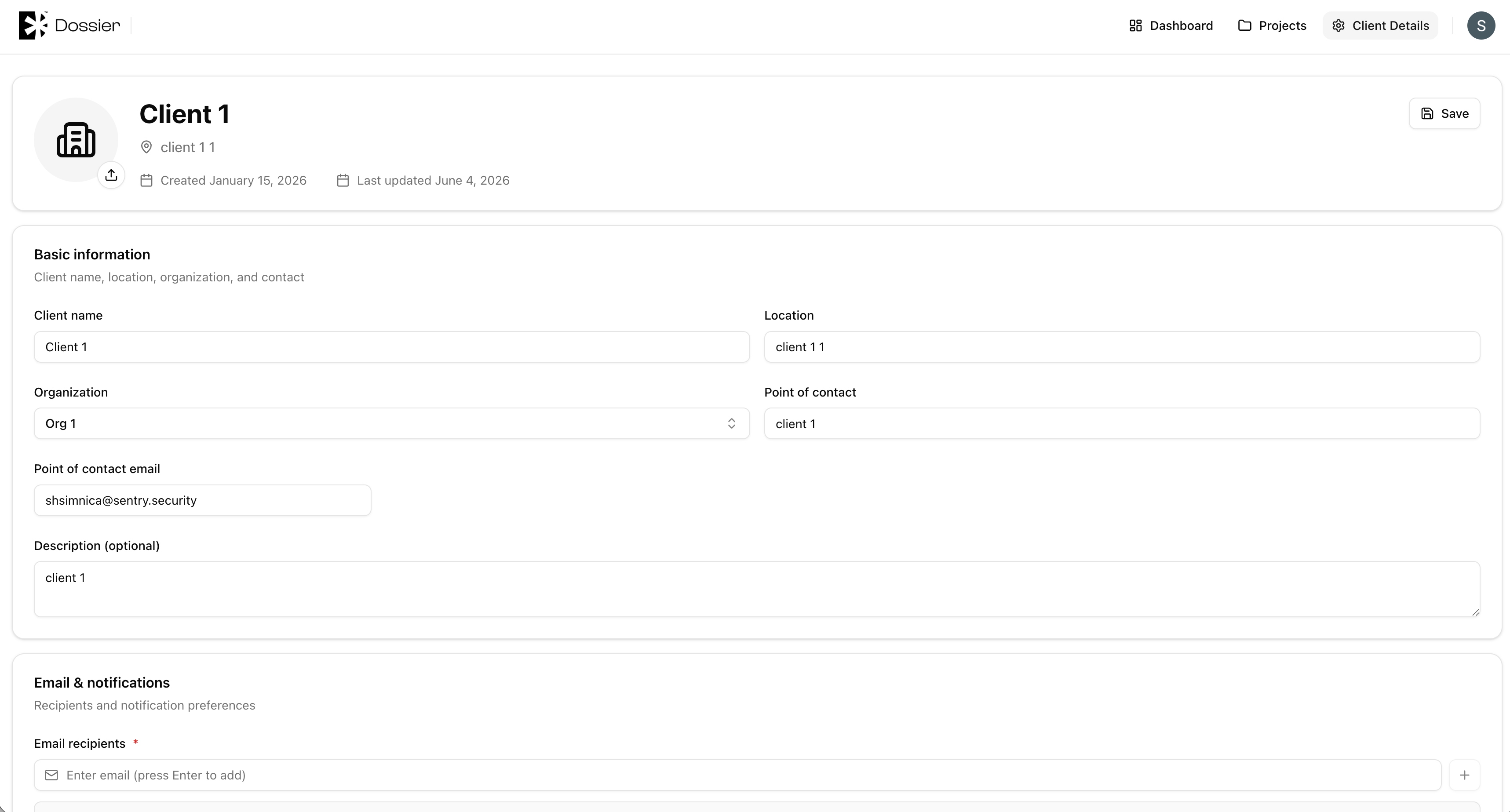
Click Client Details in the top navigation to view your client's profile information.
Getting Help
If you need access to additional projects, findings, or features, contact your Dossier administrator or the point of contact listed on the Client Details page.